How to Use Expense Tracking APIs to Build Custom Reports
A technical guide for developers and power users on leveraging open banking APIs and expense data exports to create personalized financial analytics and automated reports.

If you’ve ever wished your budgeting app showed you exactly the metric you care about — not the canned reports every app provides — this article is for you. Modern finance platforms expose APIs and data exports that let you build completely custom financial analytics. I’ll walk through the practical process of extracting, transforming, and visualizing your personal expense data.
Why Build Custom Reports?
Standard budgeting apps show you category totals and month-over-month comparisons. Useful, but basic. Custom reports can answer questions no app anticipates:
- “What’s my average weekend spending vs. weekday spending?”
- “How does my spending change in the week before payday vs. the week after?”
- “What percentage of my dining budget goes to delivery vs. dine-in?”
- “Which day of the month am I most likely to impulse-buy?”
These insights require granular transaction data and custom analysis — exactly what APIs and data exports provide.
Step 1: Getting Your Data
Method 1: Bank Statement Exports (Easiest)
Most Indian banks allow you to download transaction statements in CSV, Excel, or PDF format from their net banking portal:
- SBI: Net Banking → Account Statement → Download as Excel
- HDFC: Net Banking → Enquire → Account Statement → Download
- ICICI: Internet Banking → My Accounts → Statement → Download CSV
- Axis: Net Banking → Accounts → Detailed Statement → Export
CSV is the most useful format for analysis. A typical bank CSV contains: Date, Narration/Description, Debit, Credit, and Balance.
Method 2: UPI App Exports
- Google Pay: Settings → Transaction history → Download statement (PDF only, unfortunately — requires parsing)
- PhonePe: History → Download Statement → CSV available for some periods
- Paytm: Passbook → Download Statement
Method 3: Open Banking APIs (Advanced)
India’s Account Aggregator (AA) framework enables consented data sharing between financial institutions. Through services like Setu, Finvu, or OneMoney, you can programmatically fetch account statements across banks with a single consent flow.
The basic API flow:
- Register as a Financial Information User (FIU) on an AA platform
- Request consent from the customer (yourself, in this case)
- Fetch encrypted financial data through the AA’s API
- Decrypt and process locally
For personal projects, the simpler CSV export approach is usually sufficient. APIs are more relevant for building products that serve multiple users.
Step 2: Cleaning and Structuring the Data
Bank CSVs are messy. The narration field contains merchant names, UPI IDs, reference numbers, and payment modes all jumbled together. Here’s a Python approach to clean the data:
import pandas as pd

# Load bank CSV
df = pd.read_csv('bank_statement.csv')

# Standardize column names
df.columns = ['date', 'narration', 'debit', 'credit', 'balance']

# Parse dates
df['date'] = pd.to_datetime(df['date'], format='%d/%m/%Y')

# Extract merchant name from narration
# UPI transactions typically format: "UPI/MERCHANT_NAME/UPI_ID/REF"
df['merchant'] = df['narration'].str.extract(r'UPI/([^/]+)/')

# Categorize using keywords
categories = {
    'Groceries': ['bigbasket', 'blinkit', 'zepto', 'dmart', 'more'],
    'Food Delivery': ['swiggy', 'zomato'],
    'Transport': ['uber', 'ola', 'rapido', 'metro'],
    'Shopping': ['amazon', 'flipkart', 'myntra'],
    'Utilities': ['electricity', 'bescom', 'tatapower', 'airtel', 'jio'],
}

def categorize(narration):
    narration_lower = str(narration).lower()
    for category, keywords in categories.items():
        if any(kw in narration_lower for kw in keywords):
            return category
    return 'Other'

df['category'] = df['narration'].apply(categorize)
This basic script handles 70-80% of categorization automatically. The remaining “Other” transactions can be manually categorized or handled with more sophisticated pattern matching.
Step 3: Building Custom Analytics
Once your data is clean and categorized, the analysis possibilities are extensive:
Weekday vs. Weekend Spending
df['day_type'] = df['date'].dt.dayofweek.apply(
    lambda x: 'Weekend' if x >= 5 else 'Weekday'
)

daily_avg = df.groupby('day_type')['debit'].mean()
When I ran this on my own data, I discovered I spend 47% more per day on weekends than weekdays. Not surprising in retrospect, but quantifying it motivated me to plan free weekend activities more intentionally.
Spending Velocity by Day of Month
df['day_of_month'] = df['date'].dt.day
daily_spending = df.groupby('day_of_month')['debit'].sum()
This revealed a clear pattern: my spending peaks on days 1-5 (post-salary optimism) and 25-28 (month-end stress spending). The middle of the month is my most frugal period. Knowing this pattern helps me pre-commit to spending rules during high-spending periods.
Merchant Concentration Analysis
merchant_spending = df.groupby('merchant')['debit'].agg(['sum', 'count'])
merchant_spending['avg_transaction'] = merchant_spending['sum'] / merchant_spending['count']
merchant_spending.sort_values('sum', ascending=False).head(10)
My top 3 merchants by total spending accounted for 41% of all transactions. Focused optimization on just those three relationships (negotiating a better plan, switching to a cheaper alternative, reducing frequency) had an outsized impact on my overall budget.
Step 4: Visualization
For quick, shareable visualizations, Python’s matplotlib and seaborn libraries work well:
import matplotlib.pyplot as plt

# Monthly spending trend
monthly = df.resample('M', on='date')['debit'].sum()
monthly.plot(kind='bar', color='#CF4500')
plt.title('Monthly Spending Trend')
plt.ylabel('Amount (₹)')
plt.tight_layout()
plt.savefig('monthly_trend.png')
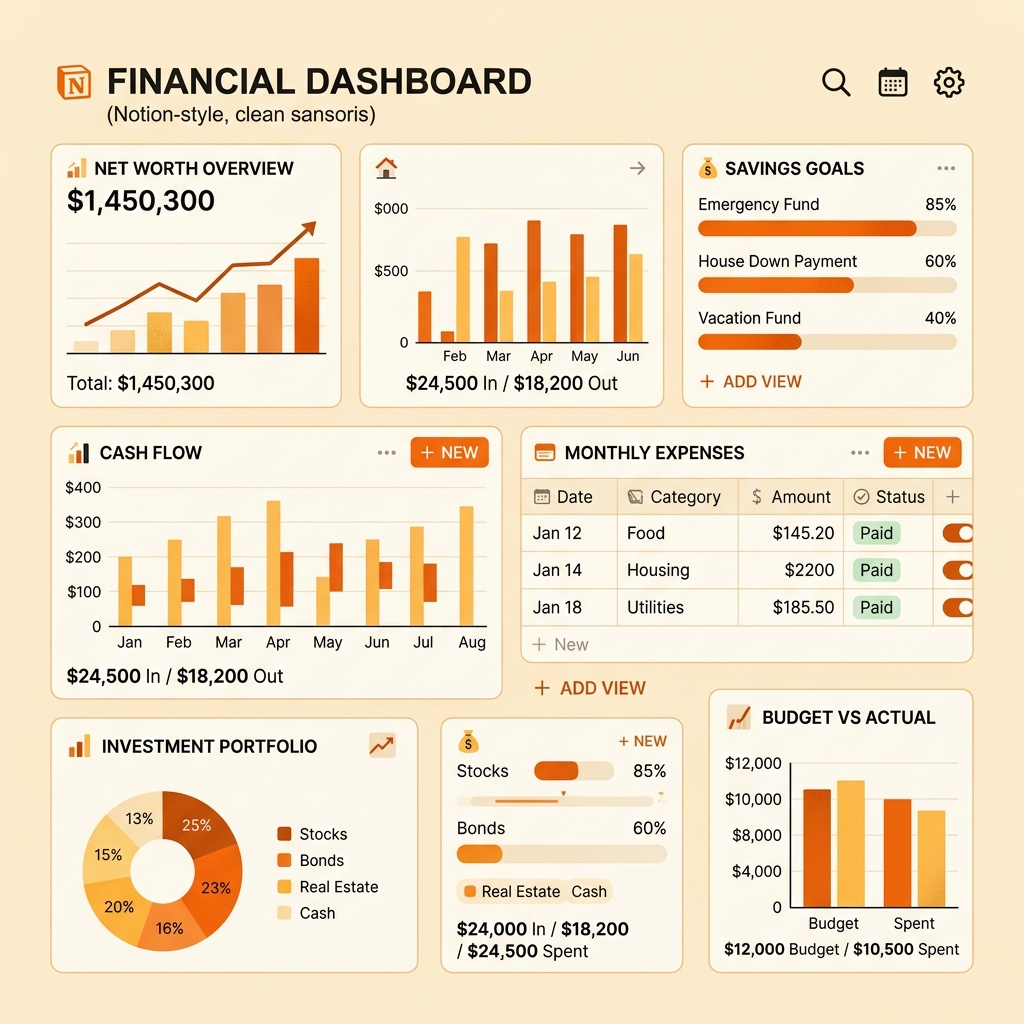
For interactive dashboards, consider Google Looker Studio (free) connected to a Google Sheet with your processed data. This gives you a real-time, web-based dashboard that updates whenever you add new transaction data to the sheet.
Step 5: Automation (The Holy Grail)
The ultimate setup is a pipeline that runs automatically:
- Monthly bank CSV download (manual — can’t be automated for security reasons)
- Python script that cleans, categorizes, and appends to a master dataset
- Google Sheet auto-updated via Google Sheets API
- Looker Studio dashboard that refreshes from the sheet
The entire pipeline, once built, requires only 5 minutes of manual effort per month (downloading the CSV). Everything else runs automatically.
Privacy Considerations
When building custom financial analytics:
- Process data locally: Don’t upload raw bank data to cloud services unnecessarily
- Use encrypted storage: Keep CSV files and databases in encrypted folders
- Minimize sharing: Custom dashboards are for your eyes only — don’t share raw financial data
- Delete raw exports: Once processed, delete the original bank CSV files
Getting Started
If you’re not a developer, start with the simplest approach:
- Download one month’s bank statement as CSV
- Open it in Google Sheets
- Add a “Category” column and manually categorize transactions
- Create pivot tables and charts
If you can code, the Python approach gives you significantly more power and automation potential. Either way, the goal is the same: transform raw transaction data into insights that no standard app provides.
Custom financial analytics isn’t about complexity — it’s about answering the specific questions that matter to your financial life.
PayWise Team
Personal finance enthusiast and tech writer at PayWise. Passionate about making digital finance accessible to everyone through practical, experience-based guides.